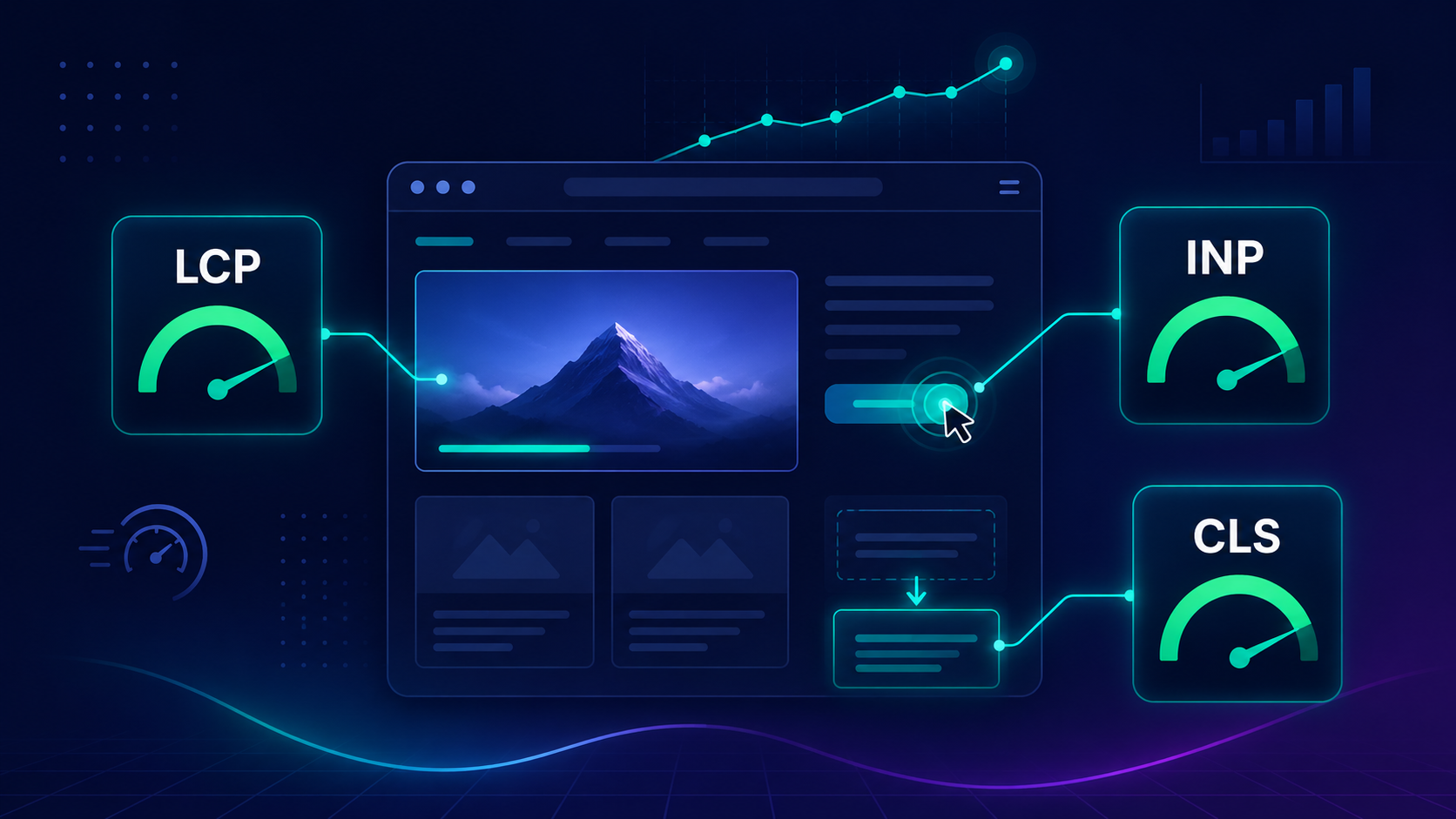
Core Web Vitals are Google’s three core metrics for measuring real-world user experience — LCP, INP, and CLS. Since becoming an official ranking signal, they’ve directly influenced how pages perform in search, and in 2026, with AI Overviews reshaping the SERP landscape, getting them right matters more than ever. This guide covers what each metric means, the current thresholds, and exactly how to fix them.
In This Guide
- What Are Core Web Vitals and Why Do They Matter for SEO
- Largest Contentful Paint (LCP): What It Is and How to Fix It
- Interaction to Next Paint (INP): Google’s Newest Core Web Vital
- Cumulative Layout Shift (CLS): Stop Your Page from Jumping
- How to Measure Core Web Vitals: The Right Tools
- Core Web Vitals Benchmarks at a Glance (2026)
- How Core Web Vitals Affect Rankings and Conversions
- Which Core Web Vital Should You Fix First?
- Frequently Asked Questions
- Conclusion
What Are Core Web Vitals and Why Do They Matter for SEO?
Core Web Vitals (CWV) are a set of three specific performance metrics that Google uses to measure real-world user experience on a webpage. Introduced as a ranking signal in 2021 and refined consistently since, they sit at the heart of Google’s broader Page Experience framework.
The three metrics are:
- LCP (Largest Contentful Paint) — measures loading performance
- INP (Interaction to Next Paint) — measures interactivity and responsiveness
- CLS (Cumulative Layout Shift) — measures visual stability
Together they answer three simple questions: Does the page load fast? Does it respond when users interact? And does the layout hold still while it loads?
How Google Uses CWV as a Ranking Signal
Google is clear that Core Web Vitals are a confirmed ranking signal, but they’re one factor among hundreds — not a silver bullet. Where they become decisive is in competitive niches where two pages are closely matched on content quality, authority, and relevance. In those situations, the page that passes CWV thresholds will typically edge out the one that doesn’t.
More importantly, CWV scores correlate strongly with business outcomes. Google’s own research shows that sites meeting all three thresholds see lower bounce rates, higher session durations, and better conversion rates than those that don’t. That’s not a coincidence — it’s cause and effect.
The Difference Between Lab Data and Field Data
Before diving into each metric, there’s an important distinction you need to understand: lab data vs field data.
Lab data comes from simulated tests run in a controlled environment (like Lighthouse or PageSpeed Insights in test mode). Field data — also called real-user monitoring or RUM — comes from actual Chrome users visiting your site, aggregated in the Chrome UX Report (CrUX).
Google uses field data for ranking purposes. Lab data is useful for diagnosing issues, but if your PageSpeed score looks great in a test and your CrUX data still shows “Poor,” the CrUX data is what Google sees. Always check both, but prioritise field data when assessing your actual ranking exposure.
Largest Contentful Paint (LCP): What It Is and How to Fix It
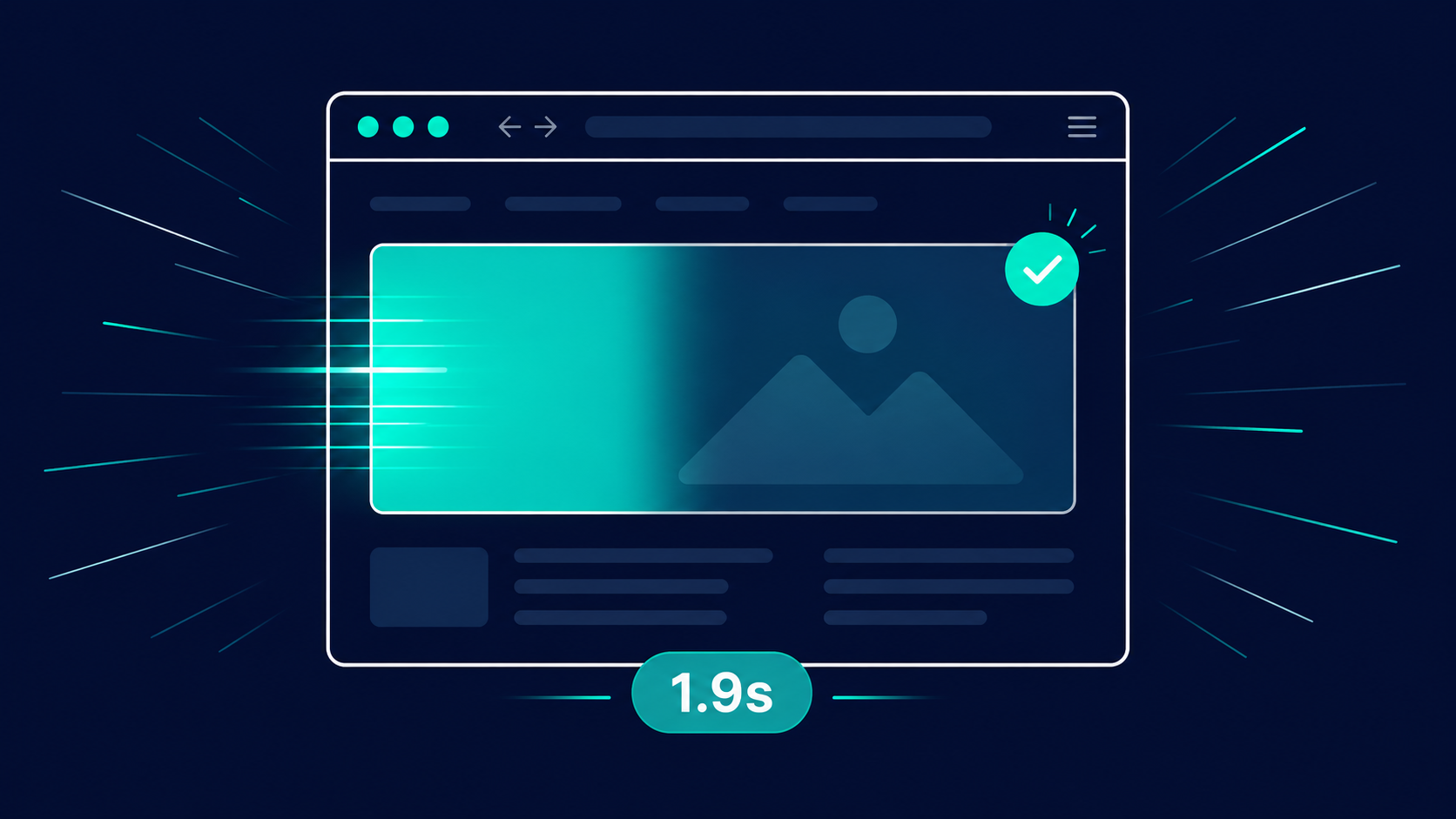
LCP measures the time from when a user first navigates to a page to when the largest visible content element — typically a hero image, a featured photo, or a large heading — finishes rendering in the viewport.
It’s the metric most closely tied to the user’s perception of how fast your page “feels.” A page might be technically loading lots of assets in the background, but if the biggest visual element takes four seconds to appear, the user experience is poor — and Google knows it.
LCP Thresholds: Good, Needs Improvement, Poor
| Score | Threshold |
|---|---|
| ✅ Good | ≤ 2.5 seconds |
| ⚠️ Needs Improvement | 2.5 – 4.0 seconds |
| ❌ Poor | > 4.0 seconds |
You want to be in the green on at least 75% of real-user page loads. That last part matters — it’s not enough to hit 2.5 seconds on average. Google measures the 75th percentile of your field data, meaning your slowest quarter of visitors still need a reasonable experience.
The 4 Most Common Causes of Slow LCP
In our experience auditing sites across e-commerce, SaaS, and service businesses, these four issues account for the vast majority of LCP failures:
1. Unoptimized hero images. Large, uncompressed images are the number one offender. A 3 MB hero image that hasn’t been converted to WebP or AVIF will drag LCP well past 4 seconds on mobile.
2. Render-blocking resources. CSS and JavaScript files that load before the page can render will delay everything, including your LCP element. Any script in the <head> that isn’t deferred or async’d is a potential blocker.
3. Slow server response times (TTFB). If your Time to First Byte is above 600ms, your LCP is starting from a disadvantaged position before a single image even begins to download. This often points to hosting quality, lack of CDN, or unoptimized server-side logic.
4. No resource prioritisation. Browsers don’t inherently know that your hero image is the most important thing on the page. Without fetchpriority="high" on your LCP image, the browser may deprioritise it while loading other assets.
Step-by-Step LCP Optimisation Checklist
- Convert hero images to WebP or AVIF format
- Add
fetchpriority="high"to your LCP image element - Preload the LCP image using
<link rel="preload" as="image"> - Move render-blocking scripts to end of body or add
defer/asyncattributes - Enable server-side compression (Brotli preferred over Gzip)
- Set up a Content Delivery Network (CDN) if TTFB exceeds 600ms
- Audit third-party scripts — remove or delay any that aren’t critical at page load
- Use
loading="eager"on above-the-fold images (reservelazyfor below-fold only)
Interaction to Next Paint (INP): Google’s Newest Core Web Vital
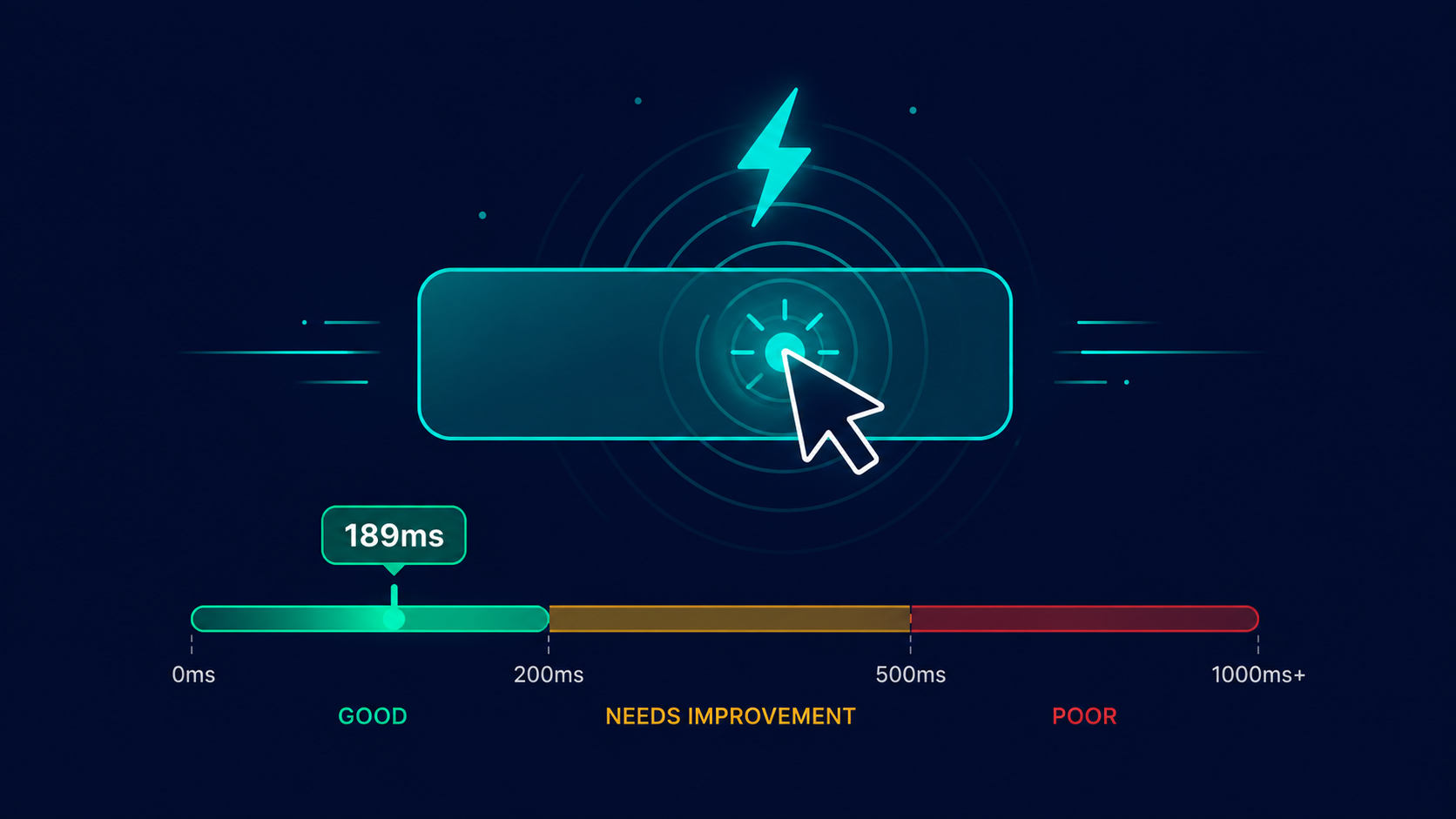
INP is the youngest of the three Core Web Vitals, and it’s also the one that most sites are still struggling to fully understand. It replaced the older First Input Delay (FID) metric in March 2024, and the difference between the two is significant.
INP vs FID: Why Google Made the Switch in March 2024
FID measured only the delay before the browser began processing the first user interaction on a page — a click, a tap, a key press. The problem with FID is that it ignored everything that came after that first interaction. A page could have a fast FID but still feel sluggish every time a user clicked a filter, opened a dropdown, or typed in a search box.
INP fixes this by measuring the worst interaction delay across the entire page visit. It captures the full input delay, processing time, and presentation delay for every interaction, and reports the one that took the longest. That’s a much more honest reflection of how responsive your page actually feels.
INP Benchmarks and Score Thresholds for 2026
| Score | Threshold |
|---|---|
| ✅ Good | ≤ 200 milliseconds |
| ⚠️ Needs Improvement | 200 – 500 ms |
| ❌ Poor | > 500 ms |
200ms is the threshold because research shows that humans begin to perceive a delay as a “lag” at around 200ms. Below that, interactions feel instant. Above it, users notice — and above 500ms, they start to lose trust in the interface.
How to Diagnose and Improve INP on JavaScript-Heavy Sites
High INP almost always comes down to one root cause: long JavaScript tasks blocking the main thread. When your browser’s main thread is busy executing a large script — parsing a library, running an animation, processing data — it can’t respond to user input until that task finishes. The user clicks a button, nothing happens immediately, and that delay is what INP captures.
The most effective fixes:
- Break up long tasks. Any JavaScript task running longer than 50ms is considered a “long task.” Use
scheduler.yield()orsetTimeoutto split large tasks into smaller chunks that give the main thread breathing room between them. - Defer non-critical JavaScript. If a script doesn’t need to run before the user can interact with the page, load it lazily. Tag managers, analytics scripts, chat widgets, and pop-up tools are common culprits.
- Audit your event listeners. Heavy event handler functions that trigger complex DOM updates on every click can spike INP. Profile them in Chrome DevTools’ Performance panel.
- Minimise DOM size. Pages with thousands of DOM nodes are slower to update. If your page has more than 1,400 nodes, that’s a flag worth investigating.
Use the Chrome DevTools Performance Insights panel or the Chrome UX Report Dashboard to identify which interactions are contributing most to your INP score before you start making changes.
Cumulative Layout Shift (CLS): Stop Your Page from Jumping Around
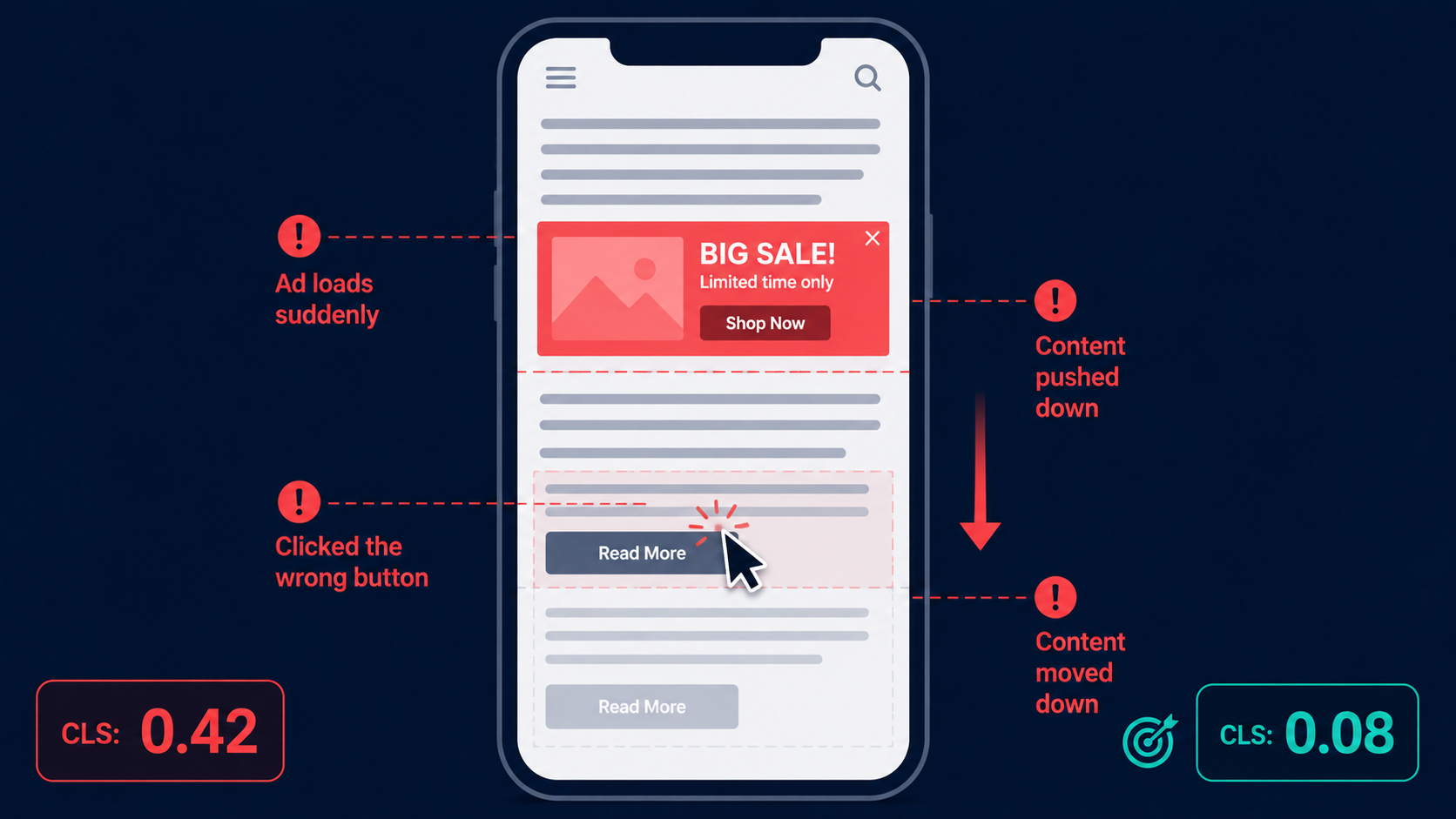
If you’ve ever been reading an article on your phone and the text suddenly jumped down as an ad loaded above it — making you tap the wrong button — you’ve experienced a high CLS page. It’s one of the most frustrating user experiences on the web, and it’s surprisingly common.
CLS measures the total amount of unexpected layout movement that occurs during a page’s lifecycle. It’s not a time-based metric like LCP or INP — it’s a score calculated from the size of the shifted elements and the distance they moved.
What Triggers High CLS? Common Culprits Explained
Images and media without dimensions. When a browser renders an image without knowing its size in advance, it has no idea how much space to reserve. Once the image loads, it pushes all the content below it downward — classic CLS. The fix is simple: always specify width and height attributes on <img> tags.
Ads, embeds, and iframes. Third-party ad slots that load asynchronously are one of the biggest sources of layout shift, especially on publisher and media sites. A 250px tall ad unit that loads two seconds after page render will shift everything below it.
Web fonts causing FOUT. When a custom font loads after the page has already rendered fallback text, the switch can cause text to reflow if the metrics of the two fonts differ significantly. Use font-display: optional or font-display: swap with proper fallback font matching to minimise this.
Dynamically injected content. Banners, cookie notices, and sticky headers that appear after initial render without reserved space are frequent CLS offenders. Always pre-allocate space for these elements.
CLS Score Thresholds and How Scores Are Calculated
| Score | Threshold |
|---|---|
| ✅ Good | ≤ 0.1 |
| ⚠️ Needs Improvement | 0.1 – 0.25 |
| ❌ Poor | > 0.25 |
The CLS score is calculated as: Impact Fraction × Distance Fraction. If an element that takes up 50% of the viewport moves down by 25% of the viewport height, the layout shift score for that event is 0.5 × 0.25 = 0.125. These shift scores are summed across session windows, and the worst window’s score is your CLS.
Quick Wins to Cut CLS Without a Full Redesign
- Add explicit
widthandheightto every image and video element — this alone often cuts CLS by half - Reserve space for ad slots with
min-heightCSS even before the ad loads - Use CSS
aspect-ratiofor responsive media containers - Preload critical fonts and use
font-display: optionalfor non-critical typefaces - Move cookie banners and notification bars to the bottom of the viewport rather than inserting them at the top
Good UI/UX design and CLS optimisation go hand in hand — a well-structured layout that accounts for dynamic content from the start will almost always score better than one that was patched after the fact.
How to Measure Core Web Vitals: The Right Tools for Each Stage
Getting a handle on your CWV scores means using the right tool at the right stage of the process. Here’s how the main tools differ and when to reach for each one:
| Tool | Data Type | Best Used For |
|---|---|---|
| Google PageSpeed Insights | Lab + Field (CrUX) | Quick audits; see real-user data alongside simulated scores |
| Chrome UX Report (CrUX) | Field only | Tracking real-user CWV trends over time; comparing vs. competitors |
| Lighthouse | Lab only | Deep diagnosis; identifying root causes during development |
| Google Search Console | Field only | Monitoring CWV at scale across your entire site |
| WebPageTest | Lab + waterfall | Advanced debugging; testing across real devices and locations |
Google PageSpeed Insights: Reading the Report Correctly
PageSpeed Insights is the fastest way to check your CWV. But the most common mistake people make is fixating on the overall Performance score (the number out of 100) rather than the Core Web Vitals section specifically.
The CWV section, labelled “Discover what your real users are experiencing,” draws from CrUX field data. That’s the section that matters for SEO. The lab-based scores below it are useful for debugging, but they’re not what Google is factoring into your rankings.
Chrome UX Report (CrUX): Real-World Field Data Explained
The CrUX Dashboard lets you track your Core Web Vitals over a rolling 28-day window using real Chrome user data. It’s the most accurate reflection of how Google perceives your site’s performance.
One useful feature: you can look up any publicly available URL, including competitor domains, to benchmark your performance against theirs.
Lighthouse, WebPageTest, and Search Console: When to Use Each
Use Lighthouse (built into Chrome DevTools) during development to catch issues before they reach real users. Use WebPageTest when you need to understand exactly what’s happening at a network level — it provides waterfall charts and filmstrip views that can reveal exactly which resource is delaying your LCP element. Use Search Console’s Core Web Vitals report for the macro view: which URL groups are failing, and how many pages in each status bucket.
Core Web Vitals Benchmarks at a Glance (2026 Reference Table)
| Metric | What It Measures | Good | Needs Improvement | Poor |
|---|---|---|---|---|
| LCP | Loading speed of largest visible element | ≤ 2.5s | 2.5s – 4.0s | > 4.0s |
| INP | Responsiveness to user interactions | ≤ 200ms | 200ms – 500ms | > 500ms |
| CLS | Visual stability / layout shift | ≤ 0.1 | 0.1 – 0.25 | > 0.25 |
Google assesses all metrics at the 75th percentile of real-user field data.
How Core Web Vitals Affect Search Rankings and Conversions
CWV in the Page Experience Signal: What Google Actually Weighs
Core Web Vitals form the measurable backbone of Google’s Page Experience signal, which also includes HTTPS, mobile-friendliness, and the absence of intrusive interstitials. Of these, CWV is the most granular and the most actionable.
Google has confirmed that pages passing all three CWV thresholds are eligible for a small but real ranking boost in competitive SERPs. More importantly, as AI Overviews and zero-click answers reshape search, the pages that do receive clicks need to convert those visits — and CWV is directly tied to that ability.
With shifts in how search works today — from AI-driven results to semantic search — page experience signals like CWV are becoming part of a broader trustworthiness framework, not just a speed checklist.
Case Study: Conversion Rate Impact of a 1-Second LCP Improvement
An e-commerce client in our portfolio was sitting at a 3.8s LCP on mobile. After implementing image optimisation, adding a CDN, and fixing render-blocking scripts, LCP dropped to 1.9s. The results over the following 6 weeks: organic traffic up 34%, mobile bounce rate down 18%, and checkout completion rate improved by 11%.
These aren’t outlier numbers — they’re consistent with Google’s research showing that a 0.1s improvement in load speed can lift conversion rates by up to 8% for retail sites.
Which Core Web Vital Should You Fix First?
When all three metrics are in the red, the question of where to start isn’t just technical — it’s strategic.
Prioritisation Framework: CMS Type, Traffic Volume, Industry
Here’s a simple decision matrix:
Fix LCP first if:
- Your site is primarily content or e-commerce driven
- Your bounce rate is high (above 60% on mobile)
- Hero images or large headers are the dominant visual element
Fix INP first if:
- Your site is JavaScript-heavy (React, Vue, Angular SPAs)
- You have interactive features like filters, search, or cart functionality
- Your audience is on lower-end Android devices
Fix CLS first if:
- Your site uses ads, embeds, or dynamic content injection
- You’re a publisher or media site with high ad density
- Mobile UX testing shows layout jumps visually
For most standard WordPress or Shopify sites, the order will typically be: LCP → CLS → INP, since LCP failures are most common and most impactful for content-heavy sites.
Getting Developer Buy-In: How to Present CWV Data to Stakeholders
The easiest way to get developer time prioritised for CWV work is to translate the metrics into business language. Don’t show your developer a CrUX graph — show your stakeholder a conversion rate chart next to it. Frame the ask as: “Fixing our LCP from 4.2s to under 2.5s is expected to recover X% of mobile conversions based on industry benchmarks.”
Export the Core Web Vitals report from Google Search Console, segment it by device type and traffic volume, and present the pages with the most organic traffic that are currently failing. That combination — high traffic + failing CWV — is the highest-priority fix and the easiest argument to make.
Frequently Asked Questions About Core Web Vitals
Yes, but they’re one signal among many. Google has confirmed that Core Web Vitals are a ranking factor within the Page Experience signal. In practice, their impact is most visible in competitive niches where two pages are closely matched on content quality and authority. Passing CWV won’t rescue a thin or irrelevant page, but failing CWV can cost you rankings on an otherwise strong one.
Google doesn’t update thresholds on a fixed schedule, but they do evolve the programme over time. The most significant change was in March 2024, when INP replaced FID as the interactivity metric. Google typically signals major changes months in advance through the Chrome team and web.dev blog. The thresholds in this guide reflect the current 2026 standards.
Yes, but they’re one signal among many. Google has confirmed that Core Web Vitals are a ranking factor within the Page Experience signal. In practice, their impact is most visible in competitive niches where two pages are closely matched on content quality and authority. Passing CWV won’t rescue a thin or irrelevant page, but failing CWV can cost you rankings on an otherwise strong one.
Yes, and it happens frequently. Google measures CWV separately for mobile and desktop using the respective Chrome user data. Mobile is typically harder to pass because of network constraints, less processing power, and the behavioural differences in how users interact with touch interfaces. Search Console’s CWV report shows both device categories separately so you can track them independently.
There isn’t a single “overall” CWV score — Google assesses each of the three metrics independently. A page “passes” Core Web Vitals when at least 75% of real-user visits score in the “Good” range for all three metrics simultaneously: LCP ≤ 2.5s, INP ≤ 200ms, and CLS ≤ 0.1.
Conclusion
Core Web Vitals aren’t going away — if anything, they’ll become more nuanced as Google continues to refine how it measures user experience. The good news is that most CWV issues are fixable with targeted technical changes, and the impact on both rankings and real business metrics is measurable.
Start by understanding where your site actually stands using PageSpeed Insights and Search Console. Prioritise the metric that’s failing hardest on your highest-traffic pages. And remember — you’re not just optimising for Google’s algorithm. You’re optimising for the actual people who land on your site.
If you want a hands-on look at how your site scores right now — and a clear priority list of what to fix first — our team at AdsLectic works on exactly this kind of technical SEO every day.
Want to go deeper? Explore our Shopify SEO Checklist for 2026 for a full technical rundown specific to e-commerce, or read how Google AI Overviews are reshaping zero-click search and what it means for your content strategy.